
Connect to contacts - Mac OS
-
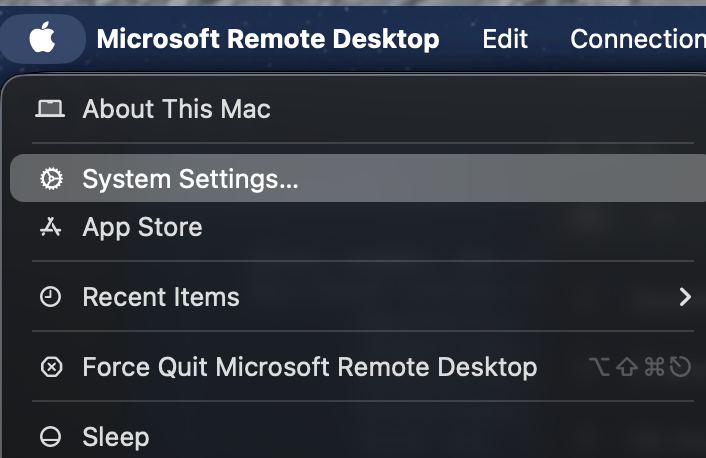
Open System Settings: Go to the Apple Menu > System Settings > Internet Accounts.
-
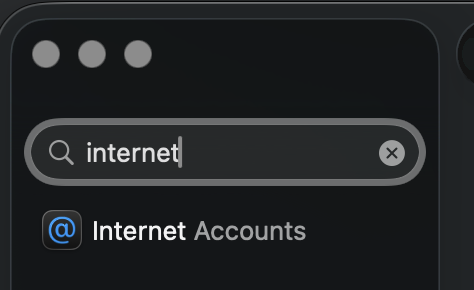
Add Account: Click the Add Account... button at the bottom of the list.
-
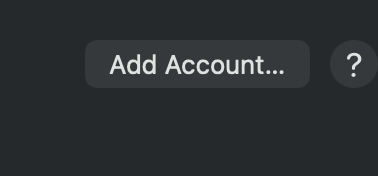
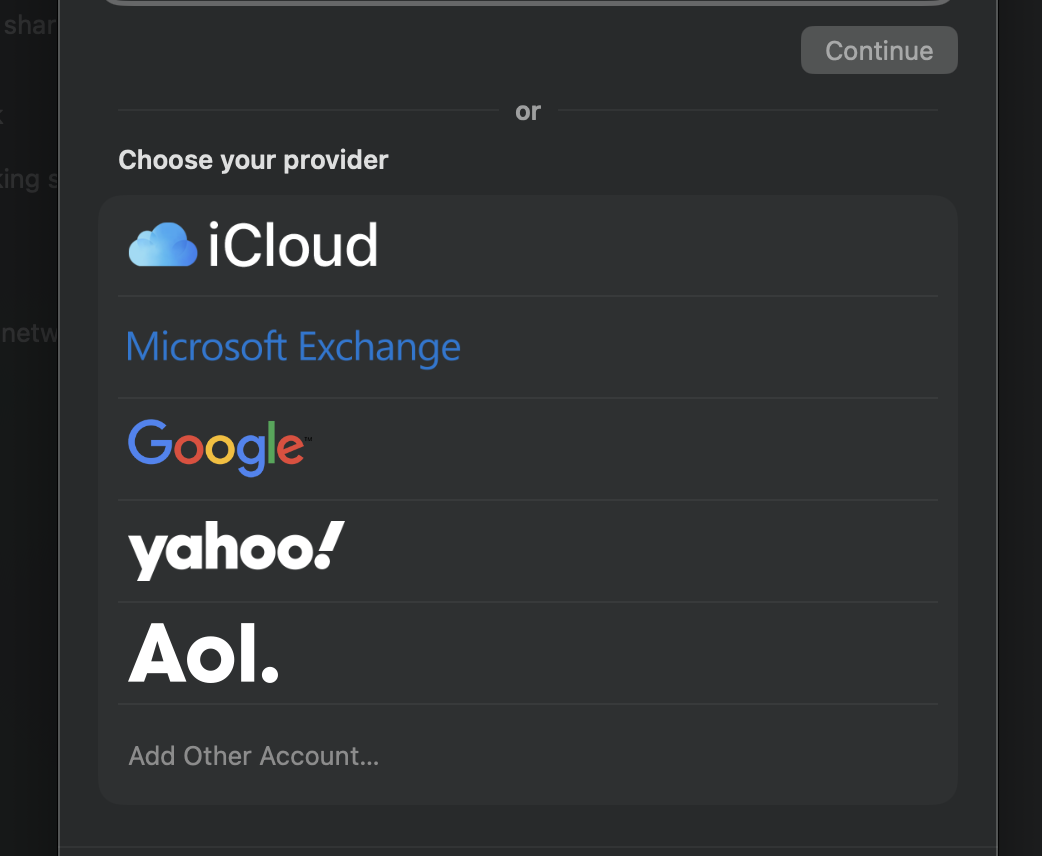
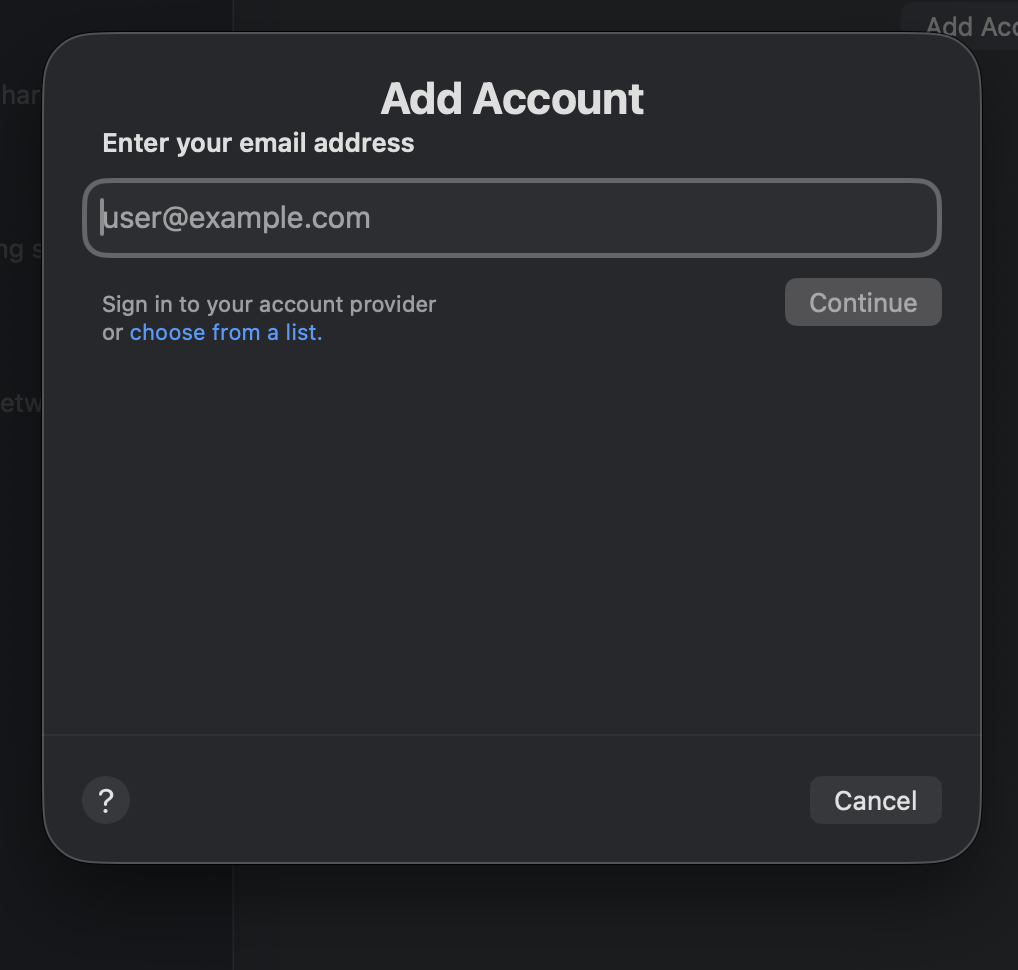
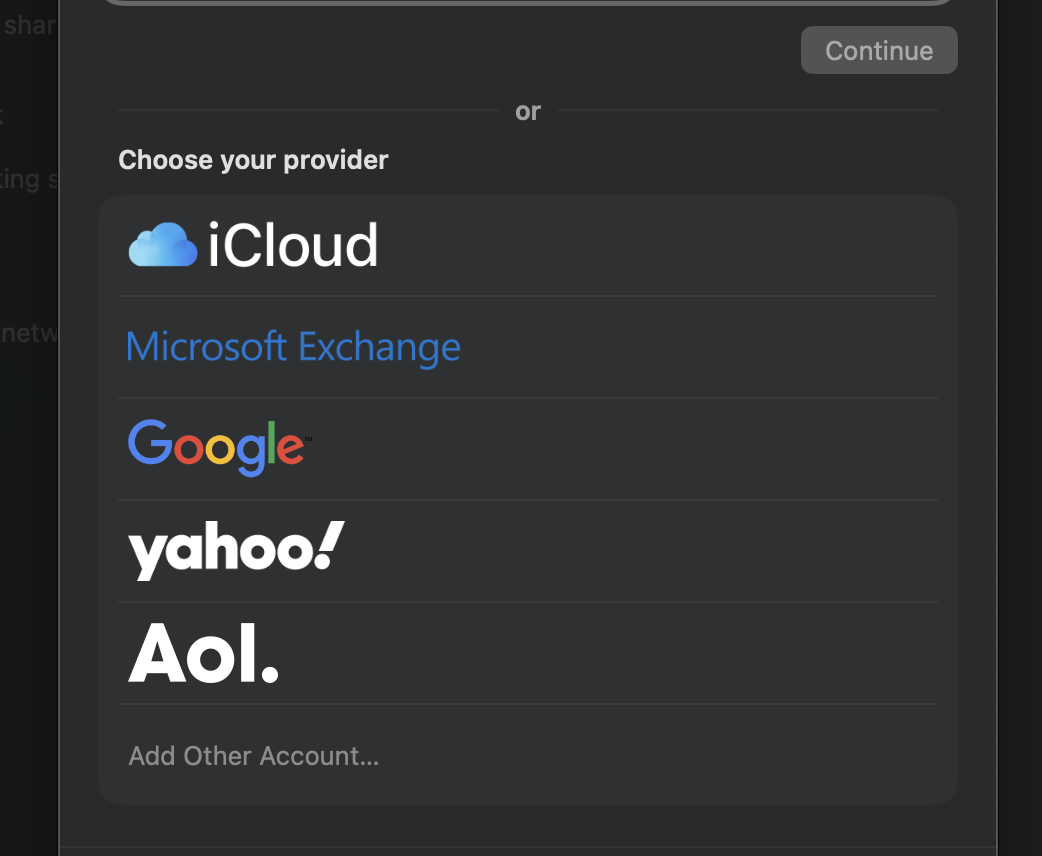
Select "Other": Select choose from a list. Scroll down and click Add Other Account....
-
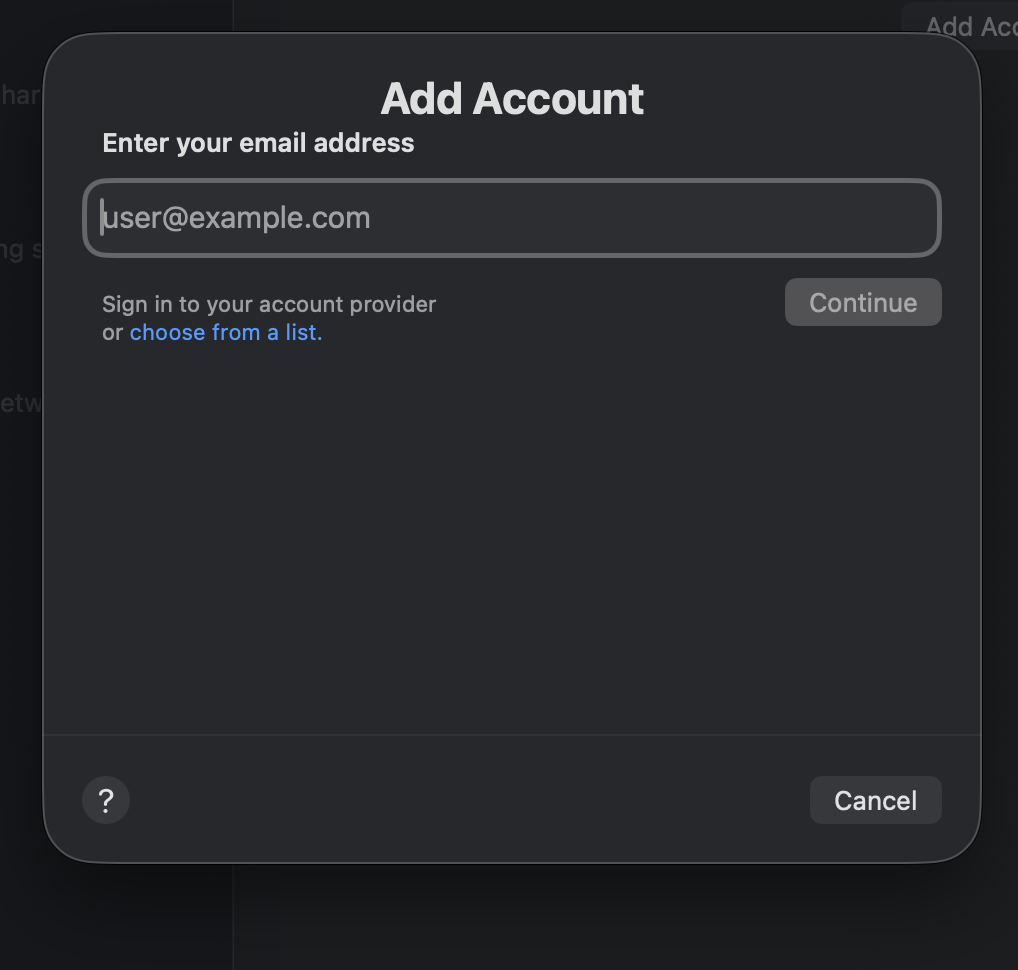
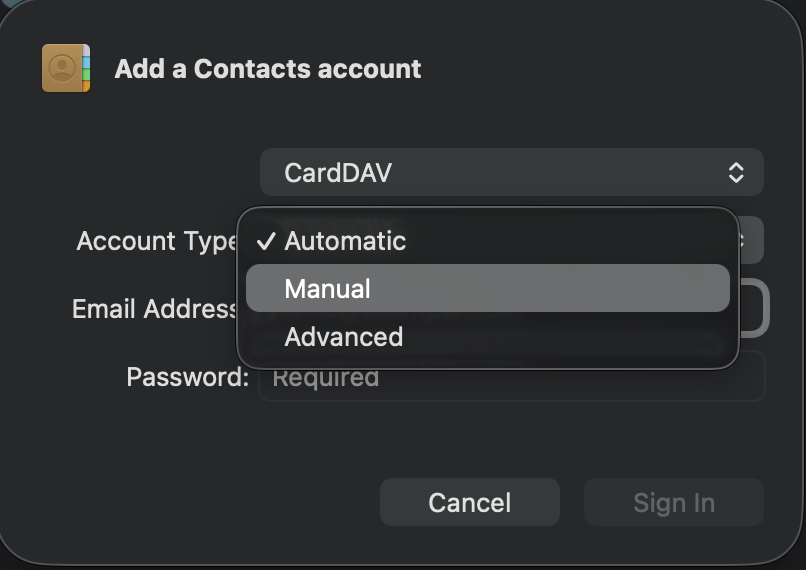
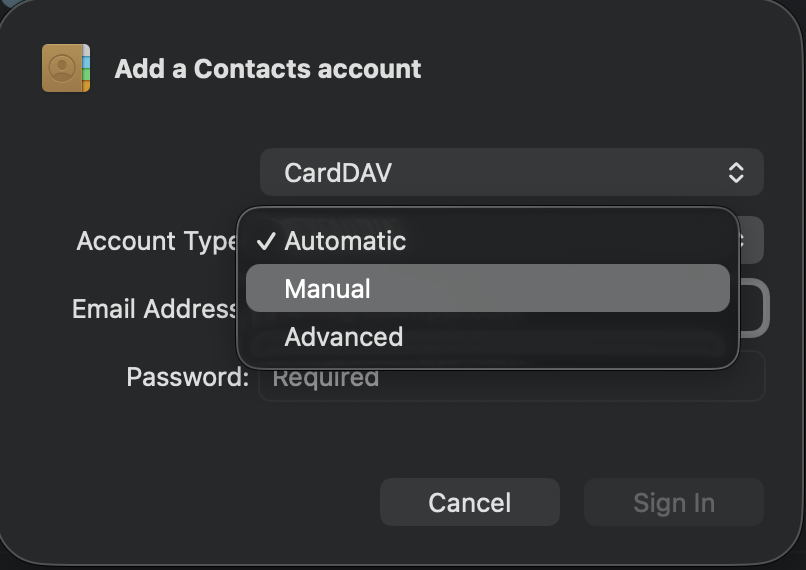
Select CardDAV: Choose CardDAV account from the list.

-
Account Type: Set this to Advanced

-
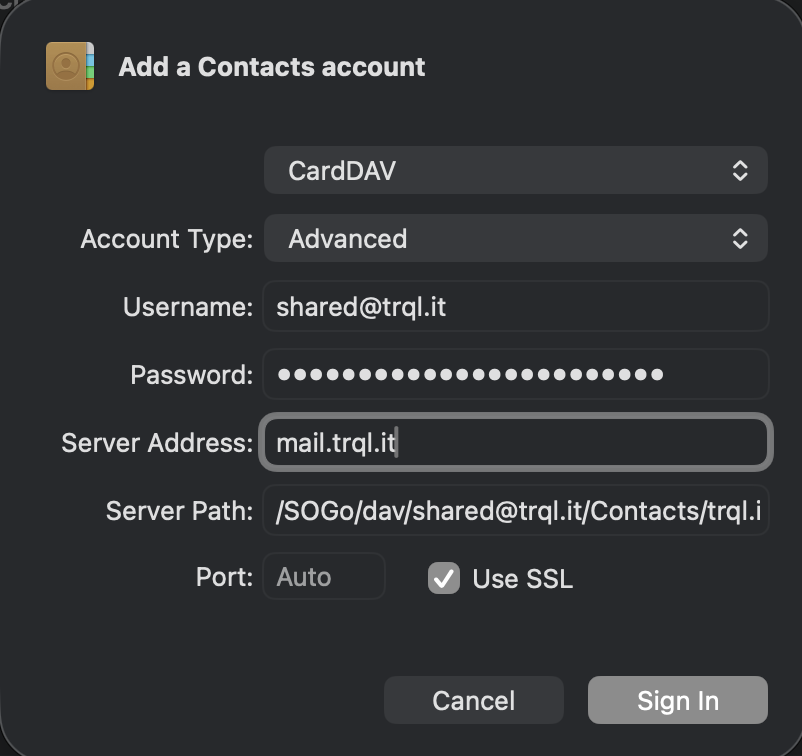
Enter Credentials: Use the following configuration:
| Setting | Value
|
| User Name | shared@trql.it |
| Password | Your shared mailbox password |
| Server Address | mail.trql.it |
-
Sign In: Click Sign In. macOS will now verify the handshake with your Mailcow server.
🔍 Troubleshooting the Connection
If the "Manual" setup fails to verify, it is usually because macOS is struggling to find the specific path to the shared folder. In this case, try the Advanced setup:
-
Change Account Type to Advanced.
-
Server Address:
mail.trql.it -
Server Path:
/SOGo/dav/shared@trql.it/Contacts/personal/-
(Note: If you have created a custom address book name, replace "personal" with that name).
-
-
Port:
443 -
Use SSL: Enabled.
No Comments