# General Windows Support Articles
# Change Windows Hello Pin
## Change or reset your PIN when you're already signed in
You can use the Settings app to change your PIN.
1. In the Settings app on your Windows device, select **Accounts** > **Sign-in options** or use the following shortcut:
[Sign-in options](ms-settings:signinoptions)
2. Select **PIN (Windows Hello)** > **Change PIN** and then follow the instructions. You must enter your old PIN in order to change to a new one
- If you forgot your PIN, select **I forgot my PIN** and follow the directions to verify your account and create a new one.
# Adding or removing an Email Account from Windows (Outlook)
These steps are the same whether you're adding your first email account or additional email accounts to classic Outlook for Windows.
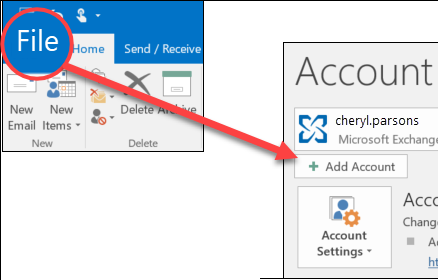
1. Select **File** > **Add Account**.
[](https://wiki.tranquilit.cloud/uploads/images/gallery/2025-08/WtgbC27hDJl3l6JD-image.png)
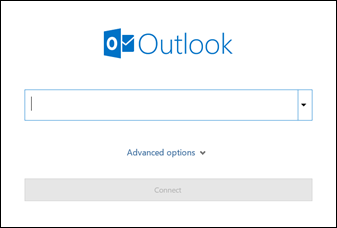
2. Enter your email address and click **Connect**.
[](https://wiki.tranquilit.cloud/uploads/images/gallery/2025-08/1Uve7NczCEX44Ir3-image.png)
3. If prompted, enter your password again, then select **OK** > **Finish** to start using your email account in classic Outlook for Windows.
### Remove an account
Removing an email account from classic Outlook for Windows doesn't deactivate the email account. If you want to deactivate your account, talk to your email account provider. Once you delete an account from classic Outlook, you'll no longer be able to send and receive mail from that account in Outlook.
1. In classic Outlook for Windows, select **File**.
2. Select **Account Settings** > **Account Settings**.
3. Select the account you want to delete, then select **Remove**.
4. You'll see a message warning you that all offline cached content for this account will be deleted. This only affects content downloaded and stored on your computer.
5. Select **Yes** to confirm.