**Important:** Only download the app made by **Microsoft Corporation**. Other apps with similar names are not the right one.
4. Tap **Get** (iPhone) or **Install** (Android). The app downloads onto your phone. 5. When it has finished, tap **Open**. 6. If the app asks whether it can send you **notifications**, tap **Allow**.**Note:** Notifications are how the app tells you someone is signing in. The setup will not work properly if you tap **Don't Allow**.
7. If the app shows a welcome or privacy screen, tap **Accept** and then **Continue**. You can tap **Skip** on any screen that asks you to sign in or add an account for now.**Note:** Leave the app installed. You will come back to it in Part 4.
## Part 2: Sign in for the first time 1. Now switch to your computer. Open your **web browser** (the program you use to go on the internet). It will look like one of these icons.  *Google Chrome, Microsoft Edge, Firefox, Opera and Safari* 2. Click in the address bar at the very top of the window, type **office.com** and press **Enter**.  *office.com typed into the address bar* 3. Click **Sign in**. 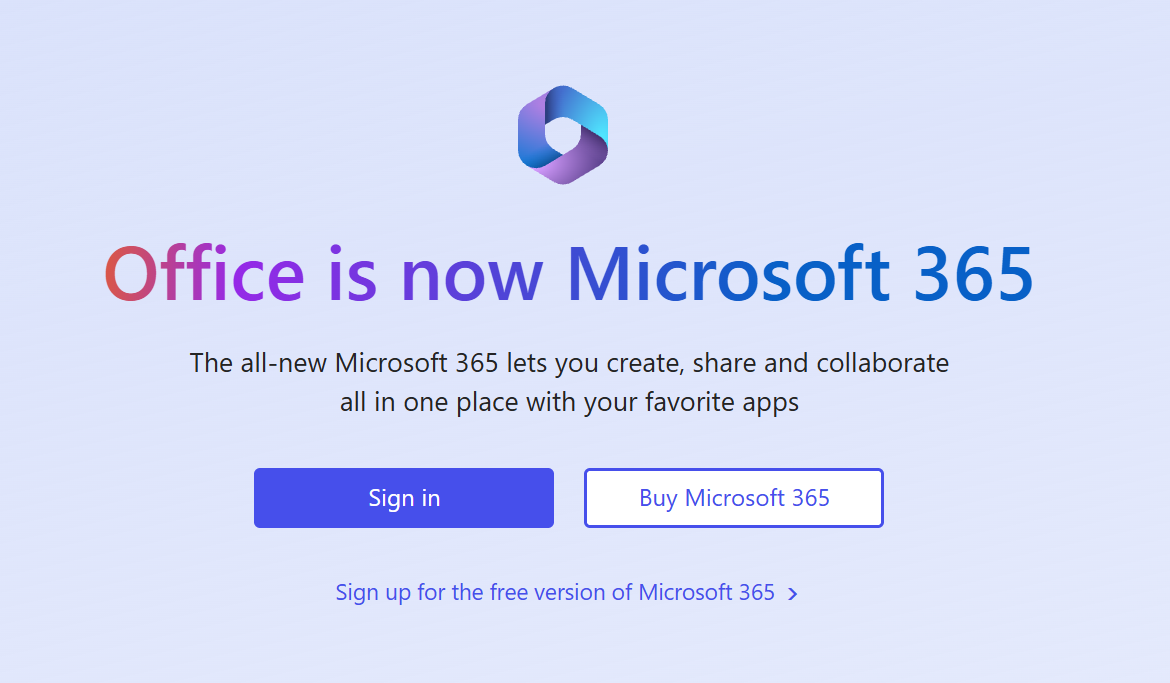 *The Sign in button on the office.com page* 4. Type your work **email address** and click **Next**. 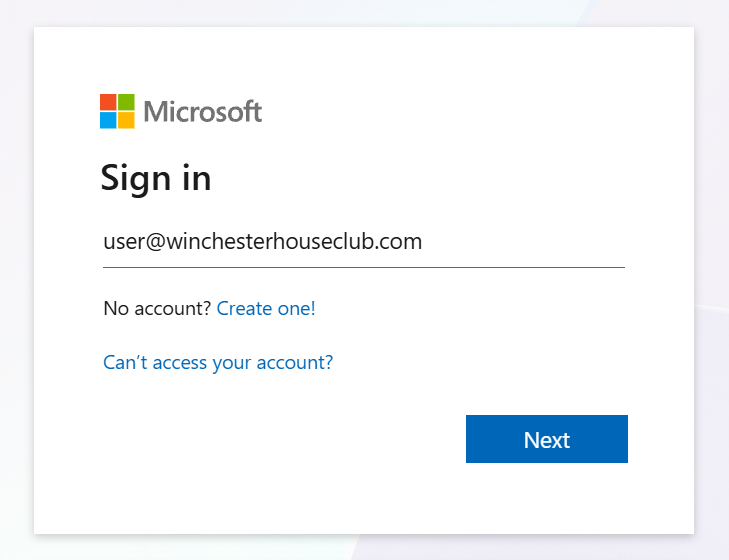 *The Sign in box with an email address typed in* 5. Type your **temporary password** in the **Password** box and click **Sign in**. 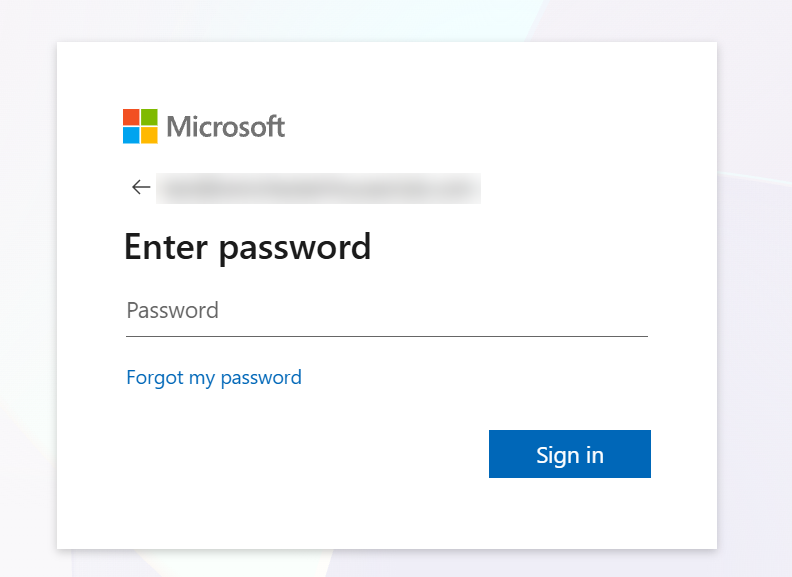 *The Enter password screen***Tip:** Passwords are case sensitive, so capital letters matter. If it will not accept it, check the **Caps Lock** key is not switched on.
6. You may see **Update your password**. If you do, type your temporary password in the **Current password** box. 7. Type a new password of your choice in the **New password** box, then type it again in the **Confirm password** box. 8. Click **Sign in**.**Note:** Choose a password you will remember but others would not guess. A good trick is three random words joined together, for example **CoffeeRiverLamp**. Never write it on a note stuck to your screen.
## Part 3: Start the security setup 1. A screen says **Let's keep your account secure**. Click **Next**. 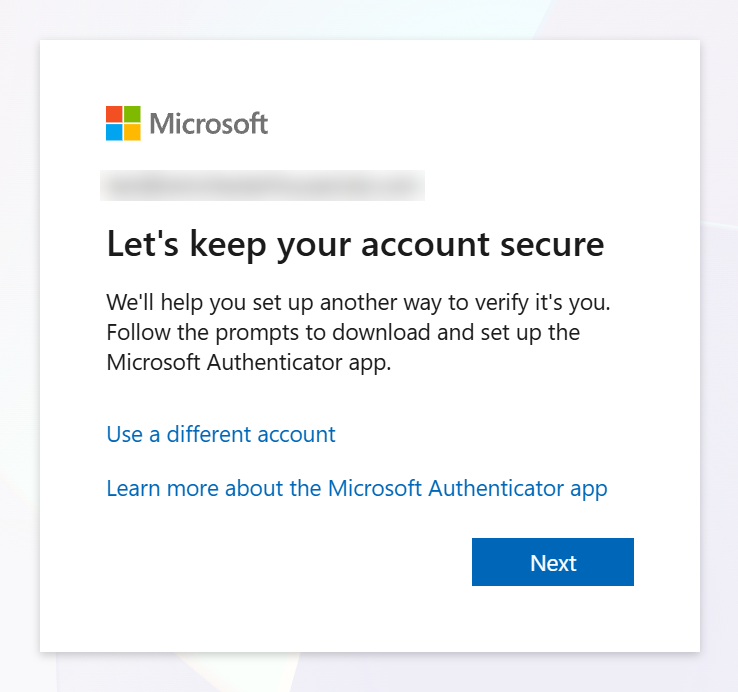 *The Let's keep your account secure screen***Note:** This is expected. It is not an error and nothing is wrong with your account.
2. The next screen says **Install Microsoft Authenticator**. You already did this in Part 1, so click **Next**. 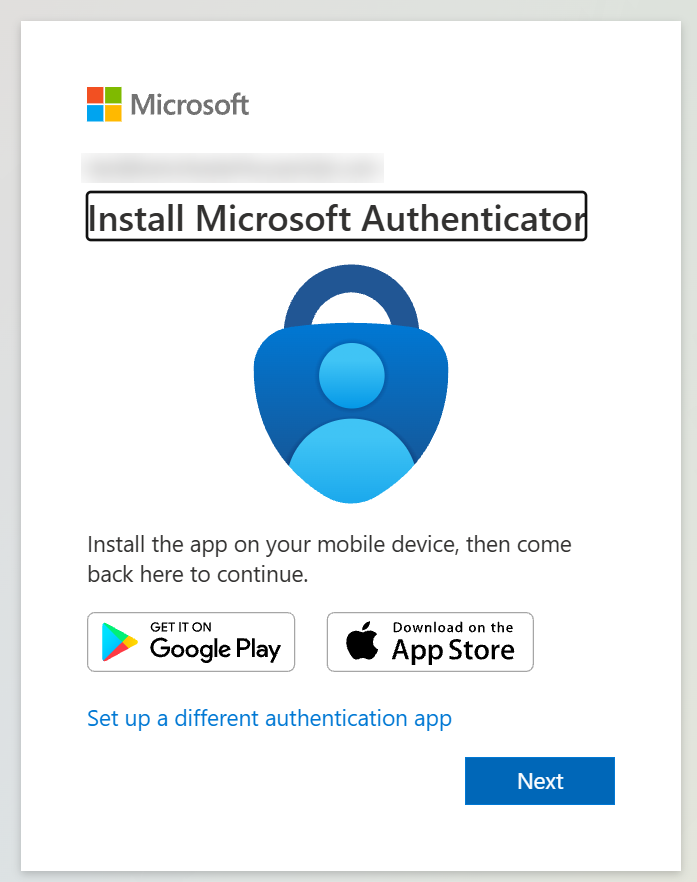 *The Install Microsoft Authenticator screen* 3. The next screen says **Set up your account in app**. Click **Next**. 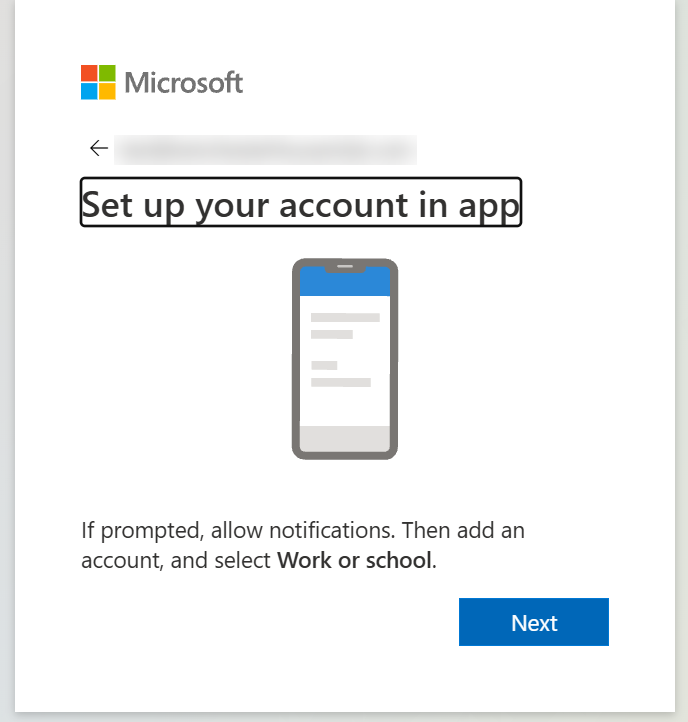 *The Set up your account in app screen* 4. A screen says **Scan the QR code** and shows a square black-and-white pattern. Leave this screen open on your computer. 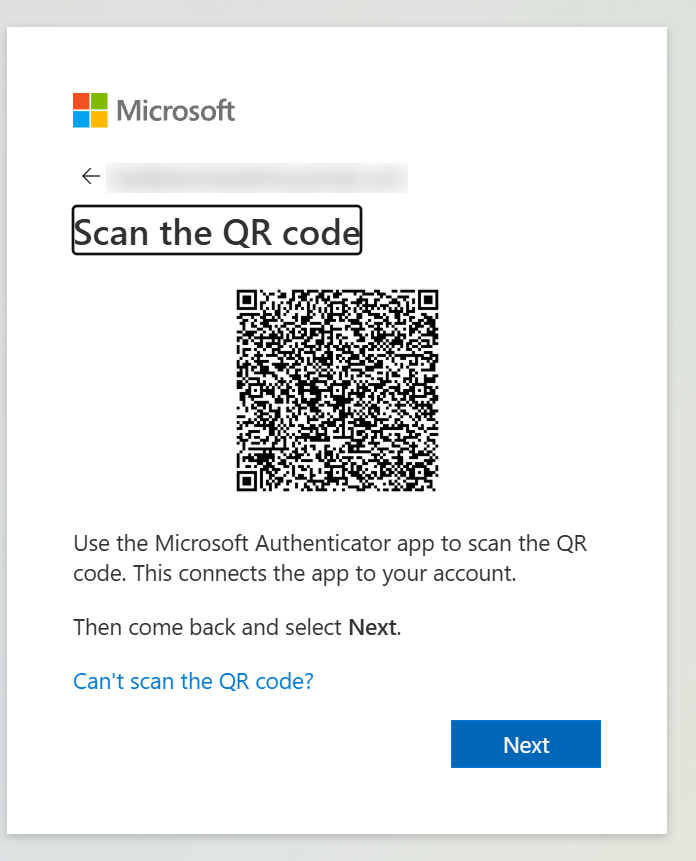 *The Scan the QR code screen***Important:** Do not click **Next** yet. You need to scan this code with your phone first (Part 4).
## Part 4: Add your work account to the app 1. Pick up your phone again, keeping the QR code showing on your computer. Open the **Authenticator** app on your phone. 2. Tap **Add account**. (If the app already has other accounts in it, tap the **+** symbol in the top-right corner instead.) 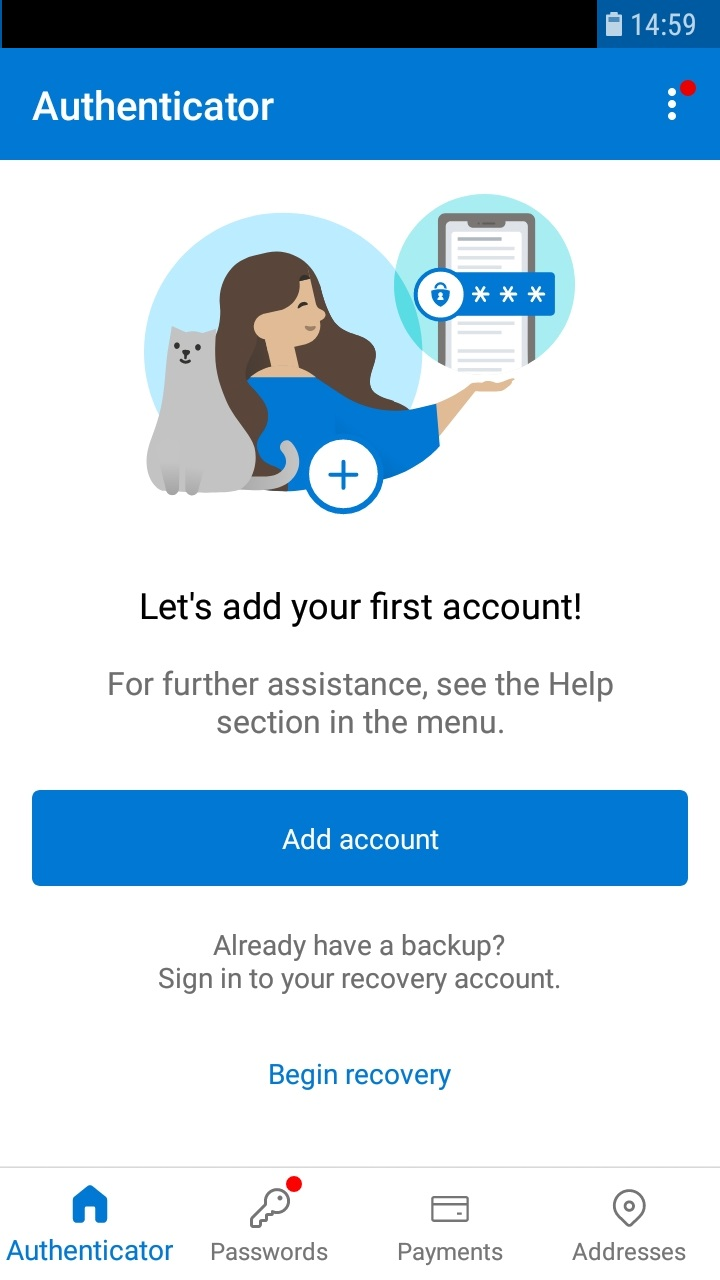 *The Add account button* 3. Tap **Work or school account**. 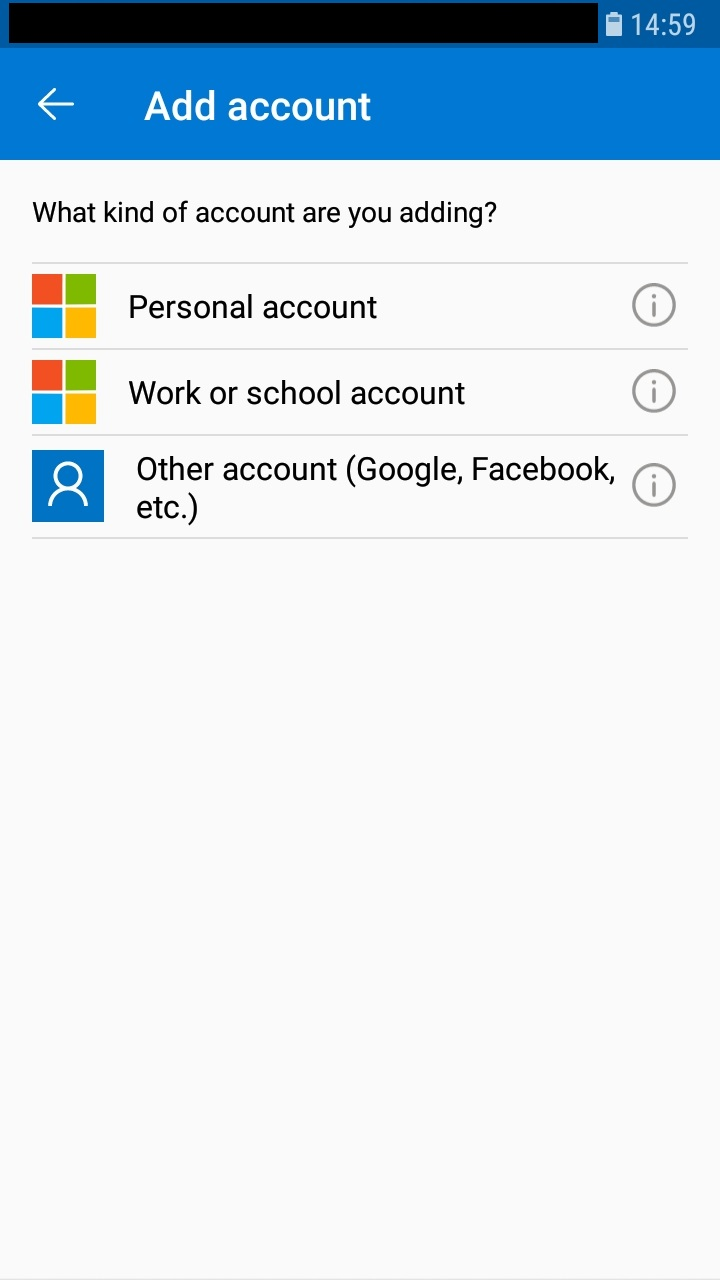 *Work or school account in the list* 4. Tap **Scan a QR code**. 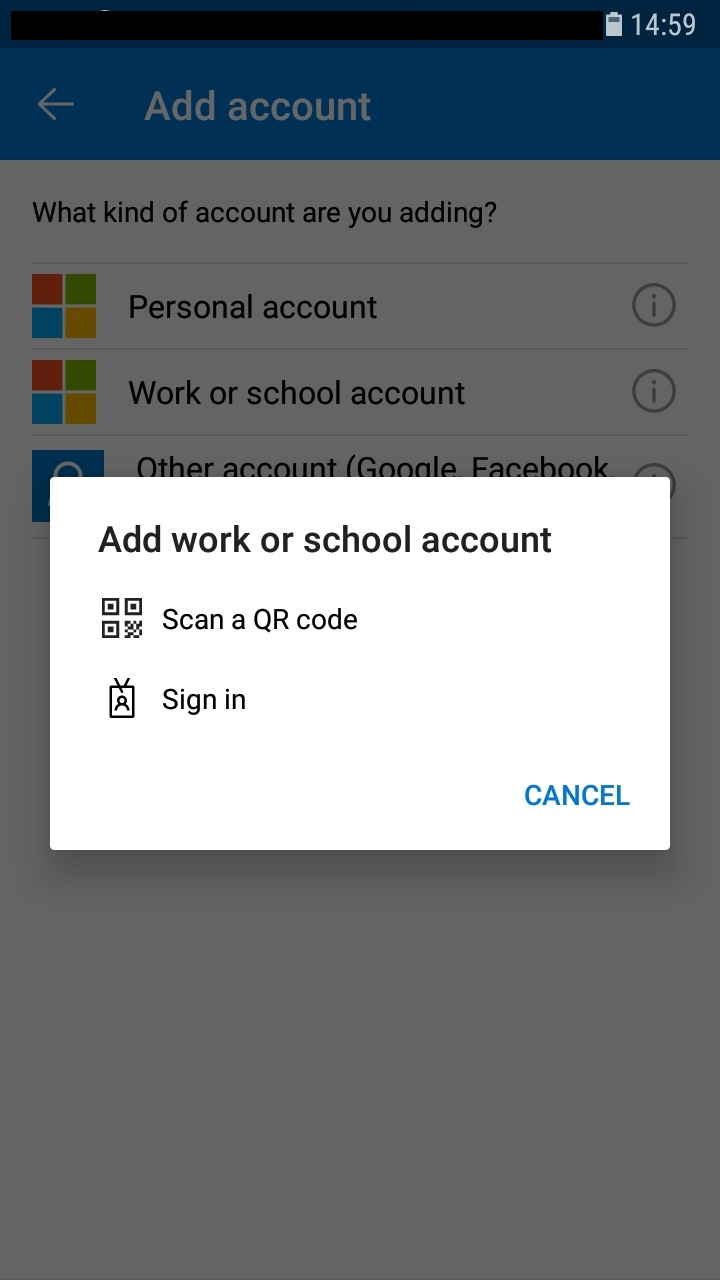 *Scan a QR code* 5. If the phone asks whether the app can use your **camera**, tap **Allow** (or **OK**).**Note:** The app only uses the camera to read the QR code. It does not take or keep any photos.
6. Point your phone's camera at the QR code on your computer screen, so the code fits inside the square on your phone. 7. The phone reads the code by itself. Your work account now appears in the app, showing your company name and your email address.**Tip:** If the camera will not read the code, move the phone a little closer or further away. If it still will not work, click **Can't scan the QR code?** on your computer and call us.
## Part 5: Test it and finish 1. Go back to your computer and click **Next** under the QR code. 2. A screen says **Let's try it out** and shows a **number** (in this picture it is **59**, yours will be different). Keep this screen open. 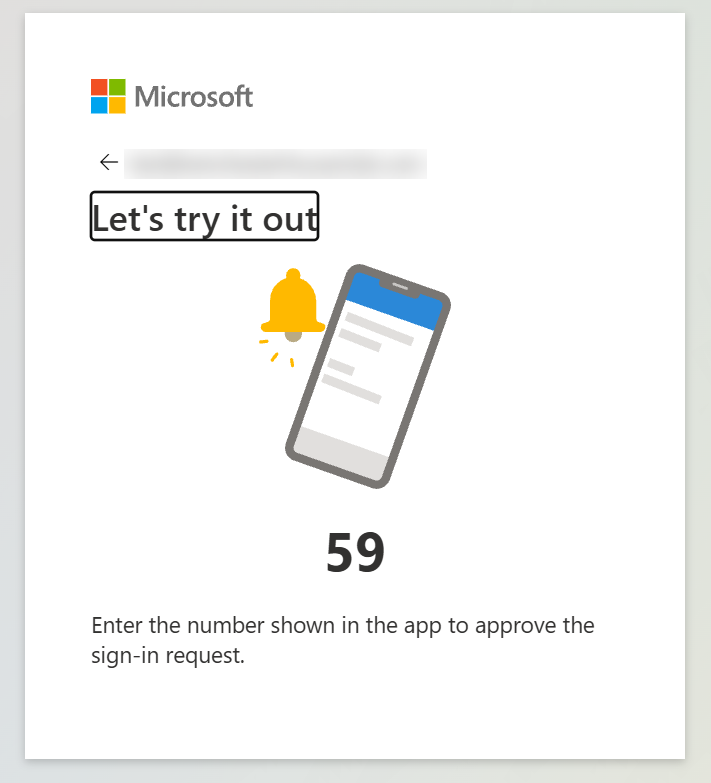 *The Let's try it out screen showing the number* 3. On your phone, a message pops up asking **Are you trying to sign in?** Tap it to open it. 4. Type the **number** shown on your computer screen into the box on your phone. 5. Tap **Yes** (or **Approve**). Your phone may ask for your fingerprint, face or phone PIN to confirm.**Note:** This is your phone's own lock, the same one you use to unlock it. Tranquil IT cannot see your fingerprint or face.
6. Your computer shows **Authenticator Added** with a green tick. Click **Done**. 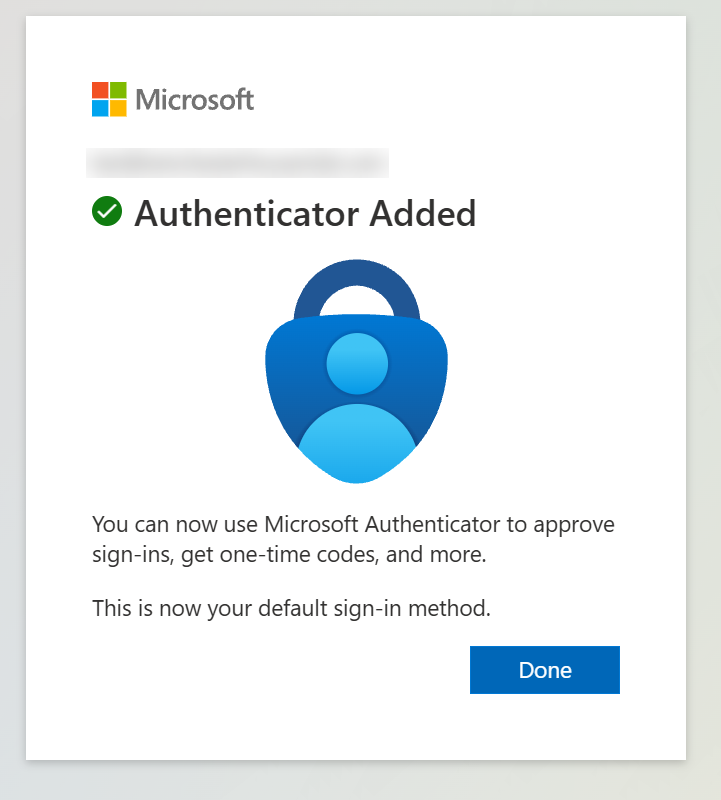 *The Authenticator Added screen***Note:** That is it. Your account is now protected. If you are asked **Stay signed in?**, click **Yes** on your own work computer, or **No** on a shared or public computer.
## Good to know - From now on, when you sign in on a new computer or phone, you will see a number on the screen. Open **Authenticator**, type the number and tap **Yes**. You will not be asked every time on the same computer. - **Never tap Yes on a request you did not start yourself.** If that happens, tap **No, it's not me** and call us straight away. Nobody from Tranquil IT or Microsoft will ever ask you to approve a request for them. - Getting a new phone? Please call us **before** you reset or hand back your old phone, so we can move your account across without you getting locked out. - Keep your phone's own lock (PIN, fingerprint or face) switched on, so nobody else can approve requests. ## Need help? If something does not look the way this guide describes, or you get stuck, call the Tranquil IT support team on **01279 658331** or email **support@tranquilit.net** and we will be happy to help.