# iPhone - Outlook Client

# Adding a 365 mailbox to your phone

### iPhone(Outlook)

---

Open **Outlook for iOS**. The icon looks like this:

<figure class="image image_resized" id="bkmrk--1">![iOS Outlook app](https://lh3.googleusercontent.com/fGSHalsEbZiMf2v_MBY152u5WAOme-bFE3mxZcTHsMIOVkuFcs7d6UWf5tKrEdcm3fyV4KeJVKO6RrP03srI7a5zqIhnKWmTuM1DQW2i0SaiJfq1eDlg_qp91bpXbTGCtreGxBsX4pIK813rw97_tmiblzPs0YcP-K03DTrrMWqpVWUQ9G1D3336hyXNSg)</figure>**Note:** Available for iOS devices using **iOS 10.0** or higher.

Open the collapsed menu in the upper left corner.

**Note:** First time using Outlook for iOS? Just tap **Get Started**.

<figure class="image image_resized" id="bkmrk--2">![Tap to open the collapsable menu in the corner](https://lh4.googleusercontent.com/inVoL0IOkBIoJAe7iBHO_mg3FfFvx-3aa2XckzEE-ciKScm8ZlfEzbXfp_ICo0xwwbTusw1VUakDudncEv1vihuWA1Cbtf_v2NcpnJH4DOLg7PLPenTgnwQCPuSxJpLFUBoklx2vP6SLRZaKrTmIglIDNte6D7picPKFfHCknqkjj0TcRxKGDgwnHipaJw)</figure>Tap **Settings**

<figure class="image image_resized" id="bkmrk--3">![Outlook app settings](https://lh4.googleusercontent.com/OdCRIVOP4lLumA2KQjuo3H-sCEnqDvEivBXLWtD5waKMsveNVIU-HjorP20vfkSd8EaCKjYvXGAjSWF6bvJvLir9VNrcRx2MP7yWQqgz88A2FsCCeKw2zGsmPANtCWtirGco13mIR32LAHHhldNjhQo5_E15Vc6D6VWdqZDAiUsbyheNhIaATrXCg4uccA)</figure>&gt; **Add Account** &gt; **Add Email Account**.

Type your full email address, then tap **Add Account**.

<figure class="image image_resized" id="bkmrk--4">![Enter your email address](https://lh3.googleusercontent.com/AEHtnkZ-YxbSx8s9u8R690yIEsh6PIMKErpgGucm0z5QpW3B2ZS7QP71Nzwl-38WOXa39Y64EUZOcnoOqP1Pg97pY86FTunVT4-MbwwrykYLBYwevdUNvfeXy_wGbPHR-EIvBjs-zomaayoNpcs416cDKzN-2Hc_ChJB9Q7HU7UDS3t4N2ca6BkPFzx6rA)</figure>Enter your email account password and tap **Sign In**.

<figure class="image image_resized" id="bkmrk--5">![Enter your Outlook.com password](https://lh3.googleusercontent.com/_X8CL4QweJFGynqSAEuyKBQaC12sajUU5z7UKaRkvT6W5f7nO9gy_sr-ijZJpCfWJuPphpSaptLiVpLw-5rOIwDeCizkAGwxUbXsiszn-JgkbdeaVimdAkO2D_BGSjEwcMKomR66LTSwGh6atfpvx9V5d8cgdUN1g8wl7TeAFkRJRIVHE1N9aq6DBqeDqQ)</figure>Tap **Yes** or **Allow** to give Outlook permission to sync calendar, contacts, etc.
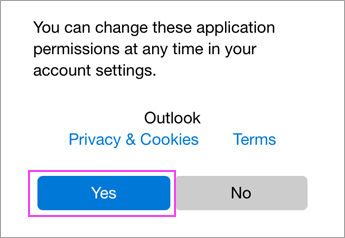
<figure class="image image_resized" id="bkmrk--6">![Allow permissions.](https://lh6.googleusercontent.com/tSHsBObgKJjrROrc6VDSB-x7Gsl74-ylAm5KSKOLIYV7qXarfcxjYW0cX7TnAv0AyPwAQ6-x56YeYxL-oTT-PAQSrbAoiEk60WAYyw3m3fWK0RO2tj-faO9Parzk6FzpO6LN_zAV-EfE1ES2TtqP-rrg5CdHr-NA2AcxzKOrfAZoptaz06TT2YKD59aIsA)</figure>Swipe through the intro and you're now ready to use Outlook for iOS!