# iPhone - iOS Client

# Adding a 365 mailbox to your phone

### iPhone

---

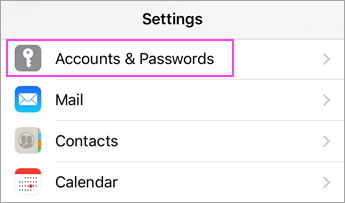
Go to your device's **Settings**, scroll down and tap **Mail** &gt; **Accounts** &gt;**Add Account**.

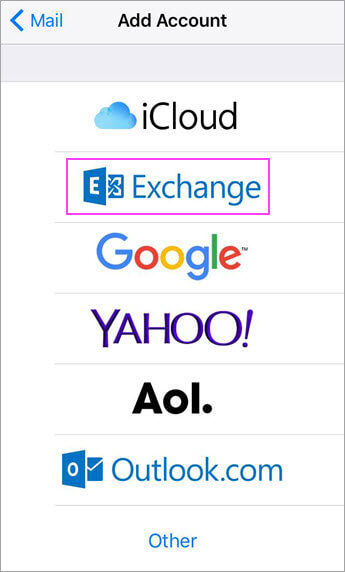
<figure class="image image_resized" id="bkmrk--1">![Device Settings > Accounts & Passwords](https://lh6.googleusercontent.com/lqSdoPa-Aw_d4rLDpf2H8C0UBrFnJjMRXj6RZqjIzWrOUwM0SyHcILLuqtT7mLbCDXMZ88SmkPKxiYFr0mmKTbnCQB03nEG42rAgIs4o5Pl3t6v3A2ZEwFRWw9N_UxIdDNsNbfz3m-D7KwEkDDnylcE3f-XgCjgZOVD7w2I_l_2trzTXOLbSlo0u1f3_vA)</figure><figure class="image image_resized" id="bkmrk--2">![Tap "Add Account"](https://lh4.googleusercontent.com/KODc3Ln6fEuCFTToreZW4YY2zMEIQtFo1NcoPCFG9NRnNtWCe9PnpG7Bo_t9CIaeHkygxuOZ51qPk6I0a1xeLPLVWLx--XGCfCctSN9LjkhJxh017UzSTdE0QVUsUvKt9Cr0D1Fv7LWqWYwj35pJhHyi5tblENTXoAh-ASNj2IWTrXTrihoZlTmteYSTYQ)</figure>Select **Exchange**.

<figure class="image image_resized" id="bkmrk--3">![Choose Exchange](https://lh6.googleusercontent.com/X2gy1tySt6FkbqGhRtq3nJWvDGYNTLfs8v8QLf1P2MQlyPyaicySeSuo213Qf8oYUz3Fl4t2jkJ-3y-s6vYaAre-pOS9FpYNMv6-DCTnKwlOVQMLrCoz8NUA55i8xhsHivl2lFdkbiJPK3ScuFeSJzf_H3mOtH0lLxwBD1plIQgSpF9_1IJs6EBVwOwTNw)</figure>Enter your Microsoft 365 email address, password, and a description of your account. Tap **Next**.
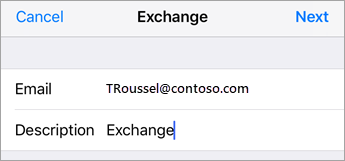
<figure class="image image_resized" id="bkmrk--4">![Exchange Sign In](https://lh6.googleusercontent.com/qnzikXzRdehHisC7IPZuU0yPTBCslCB8ZpAte2klDW3Qd8T-CxqqWwYH2oxnlbSdeHWlCxg5zY8ea6SixqAHaKdTa6n-2hNxCYfBCrbghlQhEHQiV_AiMEetRWlQDFcxuUph53tSmfrgY1cCk0OW9bz05YLJ9ruPwZUYolRGOZ-MlCPWEB6u--TG0rEERw)</figure>The Mail app may request certain permissions such as accessing your calendar and contacts. To agree, tap **Yes**.

Then choose the apps you want your email account to sync with your iOS device and tap **Save**.

Now you're all set to go!