# Android (Samsung Devices)

# Adding a 365 mailbox to your phone

### Android (Samsung)

---

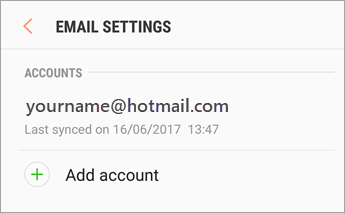
Open the Samsung Email app and tap **Add Account** if it's your first time.

Or, go to **Settings** in the app &gt; **Add account**.

<figure class="image image_resized" id="bkmrk--1">![Settings > Add account](https://lh5.googleusercontent.com/mMMUmqbPpflwQYgjf7XCezCCcxhO9lg4dvEc7Uzu9dY26_oKXAQBoEaQq4tx7z2DuCRI-vmNKvVMtvTgIsSLADQxdbkdg1ATm8d5jqqLV2l8cixi-OShMu-HkHGXOP-6eCK8Feck6hu72AWYQNoz-cSfi8N1S14L1Gdv_eP02kAO0eClrtfXrb37M6-t6Q)</figure>Enter your email address and password. Tap **Sign in**.

**Note:** If the email app detects your provider, you may be redirected to a different sign in screen.
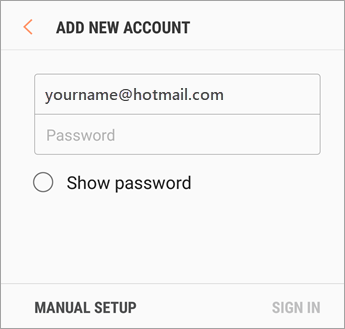
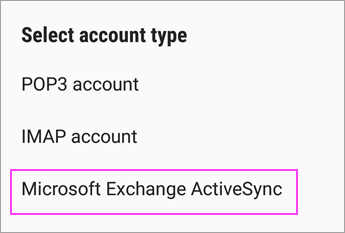
<figure class="image image_resized" id="bkmrk--2">![Email address and password](https://lh6.googleusercontent.com/fqOrSAYyA7ydMFSYs-9zymQkD8jeRROtoyJd0OI1qZPo4rEnaZUnPRfTQpoYXwgntnLgXJuXu8sdTEePUGLNF8sQpBxt6raYz-Zi3Q3aNKmrGUbO8tPlZKZfHb8jB7NXwJCZZ-P8eYcx2Kw5-52YYXRw1KAo7n-lLVL7TAuX5O5FMymwMEI-2TdoQqTOIg)</figure>If you're prompted to select account type, choose **Microsoft Exchange ActiveSync** to sync contacts and calendars.
<figure class="image image_resized" id="bkmrk--3">![Select Microsoft Exchange ActiveSync](https://lh6.googleusercontent.com/KzEvpiEjFxnZs_u-mYN-s3NzKATvHIzGZUz9b_1lVNSSwgqPDcwDleV_HD0sHenlxXgi2s7TWNzI-ojHvYIGHFUnbGRZsRETt1NOZ-CyGu7EcuBDL_-VZvDudKInE2MjKkAcA1n5XcrkGdDD1-JbrtEYuP-vNzazN_ClVsUP96_zAimYeFKZbrcYA7UqpQ)</figure>Tap **Yes** or **Ok** to confirm settings and permissions. What you see may vary depending on what kind of account you're setting up.
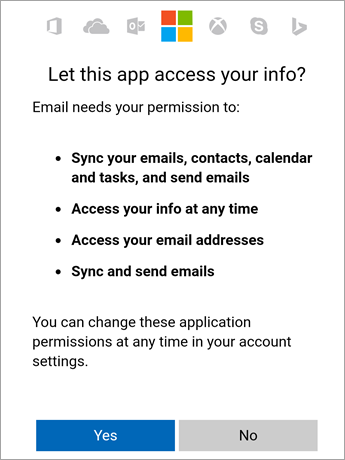
<figure class="image image_resized" id="bkmrk--4">![Tap Yes to accept permissions](https://lh5.googleusercontent.com/WpbjHONjLxoNGSBA9wIi-VCx_8tZw_vVigluw3kG3MaCg6wgzQFCyPd2e0j6yuSHD-Wt5rXQXDzck5fSk3iBuo_9LygxcBWqMfMzTlh4nlFHvAUtFuqIhjclP1jc8OyDK2u_E9ooE3UygaH6MWv9UTo246TnH7Ku6jFKIKiqD1uI2FsfgGruMmoo91RNgw)</figure>Syncing email, calendar, contacts, and tasks may take a few minutes.

If you see an email that says "**Action Required to Sync**," open it and tap **Use another Mail app instead**. If you don't see this message, skip this step.
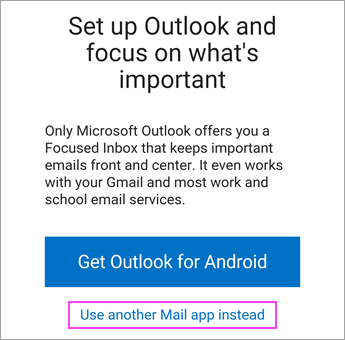
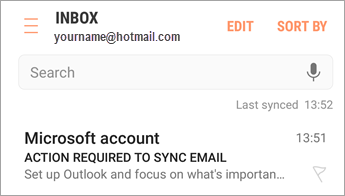
<figure class="image image_resized" id="bkmrk--5">![Open the email that says "Action required"](https://lh4.googleusercontent.com/q2PTIpdsJ87hc83Gkgm0TGa1gKgy97wKE2gwTZSeSz4OLj_lunr7jw3OO-uvxmZhqQ6sJGzZ1Lig6BgUoEmrJNPJAErxLNmkp_-ibYqXZovJ8drAU1pZRuXL70W5ZPpLEnwusEJOUogOjg_2yErhukKZAKQlrIq00EcBTdmjemP4O3eZ-ckj3WXH1cit0A)</figure><figure class="image image_resized" id="bkmrk--6">![Click the link to enable sync](https://lh6.googleusercontent.com/ZwVqnpF_eK09ZI1JnZ3PRj8Og-yty-axJCgB8CmvmMP2NVehSDLSEAfCUuL31E0Y92pm2GPhZCTH3rjKYnfp4SBIDaWrG9yvTA-x3NoVnE4yp82VjIzTdi2fxbB1p1Qz1bh5Vf1M-SgKrgY24RtCqX7Z_VlNVWkeu5Z3n8aQPlCowhydTMeDBXJNo30aow)</figure>