# Android (Non Samsung)

# Adding a 365 mailbox to your phone

### Android (Non-Samsung)

---

Open the Gmail app.

Tap the menu icon in the upper left corner &gt; **Settings** &gt; **Add account** &gt; **Exchange and Microsoft 365**.

<figure class="image image_resized" id="bkmrk--1">![Choose Exchange](https://lh3.googleusercontent.com/LdH0gxduJuv1dzoCz7ZoHOhhzczm4dYiVmW8GkkS5uV4LWSLD3jECte413AedqZ5ZaJTxjqzi6bYwvSAqnIg1jFrWvSQgZ1voCbKWe3ioy9YLDJKQaTZJtOb12lxq7_LLC8RjEYoYkvygo2q3kLd2-ZLcvoTb6mdFsbHfeVnPyrl_Aivgojvzq7835uTcg)</figure>Enter your full email address and tap **Next**..
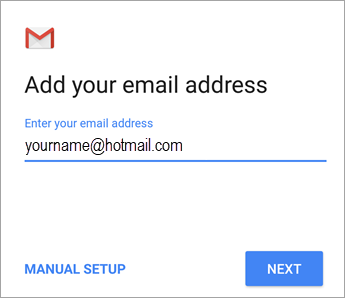
<figure class="image image_resized" id="bkmrk--2">![Add your email address](https://lh4.googleusercontent.com/QSj9KDT_vLARVfDxbmCzPqHg5OOCX-SC9S64AndhASwQJDHCvaZNf4nixh9ItLW_y4uA1mfV2hwvuTkLUAw_NEx0wFBCApsOWvRfpNMgSlAM6C8zSwrGzqFlhQX-Lmg4cCmJQ1oSZCB9hQJoMVchphUzH92olrXGZ3jItCILaxp6EzF0Ff6RUtd4zcLgRg)</figure>Enter your password and tap **Next**

<figure class="image image_resized" id="bkmrk--3">![Enter password](https://lh4.googleusercontent.com/cX9EcbxI1haSwTkLYhiCOtUvb7yPalViBk0jksb1Nw2vnzqzg6A1vygPB96Zj56A5kyaHaWflL2tpePqiGjwR40-_RWzW09Vh38qsxff7OH68M4ZVA4xfJ311kyBS4MS5VagupsjsBm446dhnXmzmN1USyVVgv_vXeZR9PVXdwojTRhvn9sQdni-k-ULXA)</figure>You may see a **Redirect request** screen. Tap **OK**.

<figure class="image image_resized" id="bkmrk--4">![If you see a Redirect request, tap OK.](https://lh5.googleusercontent.com/Zh9WFXicqghQBrgYY6puR7y2YbhjIRvCuV4hsXDF-V1xgNmzIX4vj5J_e7yCED0h8Kxx4ikJ7tIlUnx-fdllglpVdqUedes8IUu4-ZDKK71ObdWHfn5udvy42Qvtiw4ZQLUBTbYDetddq1j016AbqJgGizR7VPNnMM3vZL9geBa69FzlpcYEHRp07TRmMA)</figure>  
On the Incoming server settings screen, change your server to **outlook.office365.com**.

Follow any prompts you may get for security or device permissions, sync settings, and more.
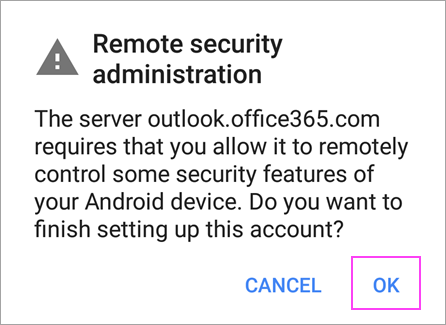
<figure class="image image_resized" id="bkmrk--5">![Click OK on any prompts you may receive.](https://lh5.googleusercontent.com/Xc8vHJsaISD7NT_mFxnGBZbHMeDtPKssJQKY7E2b6JSgz2zuELH2g-LQGcUHe1so37IEqaV6o7aKS3QxFGTJ6c7JUfKzM3zyTHxetT-wSOJWFI6-JC20TJFcF4yYTE8sf1EdYMpKII4HMr-p_ElK9WP0nSKvxP6kfd6Pkw4y85n1z1UT3mBY1uqozDxOsQ)</figure>If you have a Microsoft 365 work or school account, you may also be asked to confirm **Remote security administration** and approve additional security measures. In this case, choose **OK** or **Activate**.

Go to the inbox you just set up. If you see an email that says "**Action Required to Sync Email**," open it and tap **Use another Mail app instead**.

If you don't see this message and emails are syncing, skip this step.
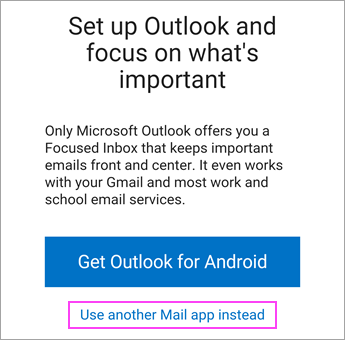
<figure class="image image_resized" id="bkmrk--6">![Click the link to enable sync](https://lh6.googleusercontent.com/GDB3y_JcC30u1UuKwFXEIC3sZdwA6nHPdo_zmeQYw83LGi7rJ8q4PsD9PTOlYNLd28K06aRAbZEnPIqafivBUYkOgqcEGMJr5X5-FiLnAkko9DwVaxhz1quabh2tbUmiVlvcspjBhfIBVODG8Vf3bwI9PJSnR7F-93wwp_zpRIxQnvlryel_ICxJaaqdyw)</figure>Pull down the Android notification bar by swiping down from the top of your screen.
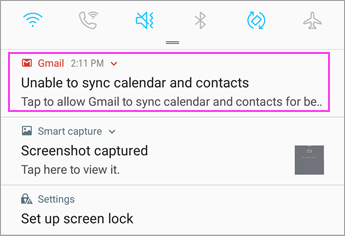
<figure class="image image_resized" id="bkmrk--7">![Open the notification bar](https://lh6.googleusercontent.com/jerCo9TOakIjk07pA1AOxucoBMl-506OTuBPBfJ_07FA7pUtpwagaNGFUD2_IJZBwiSxW3sGxEEGGqcCL0jFLNaLnxBKB73FywN3Pcov_FWamV-vGmkJLXG3nMnj4wXbXi3hGF18PJwuwpk6BMp_HeTDiV7BCjQgSAW3JMGYA6hh-FpU9rJzBpG6vsogwA)</figure>If you see a notification that reads "**Unable to sync calendar and contacts**," tap it. Then tap **Allow** to give access and you're done!

**Note:** If you don't see a sync error, verify your calendar and contacts are syncing.